ReceiptTrack
Record Mileage journeys, claims, approvals and reimbursements
Add a draft journey with vehicle, date, route, purpose and business miles. Edit or Submit it, group eligible approved journeys into a claim, submit for approval, approve or reject it, then record reimbursement with date, method and reference. Accounting posting is preview only in this mileage release. Follow the complete manual Mileage workflow and understand every status transition.
Quick answer
Add a draft journey with vehicle, date, route, purpose and business miles. Edit or Submit it, group eligible approved journeys into a claim, submit for approval, approve or reject it, then record reimbursement with date, method and reference. Accounting posting is preview only in this mileage release.
Before you start
- Add the vehicle in Fleet and review rates.
- Keep a business-purpose record for every trip.
- Use the correct workspace and tax year.
- Use Journeys, Claims, Approvals and Reimbursements tabs.
- Add, edit, submit and review a journey.
- Create and decide a claim, then record reimbursement.
1. Read the Mileage workspace
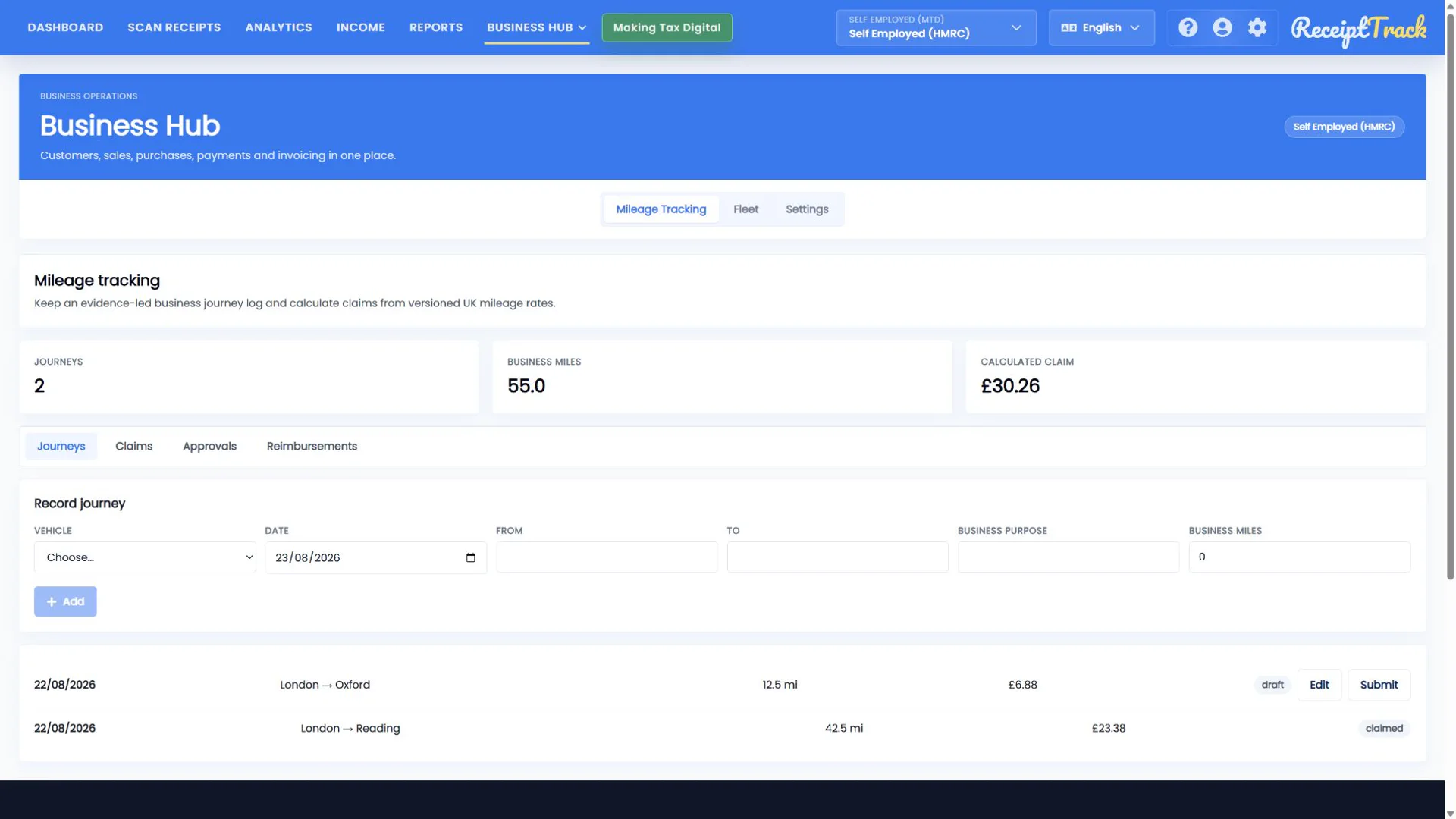
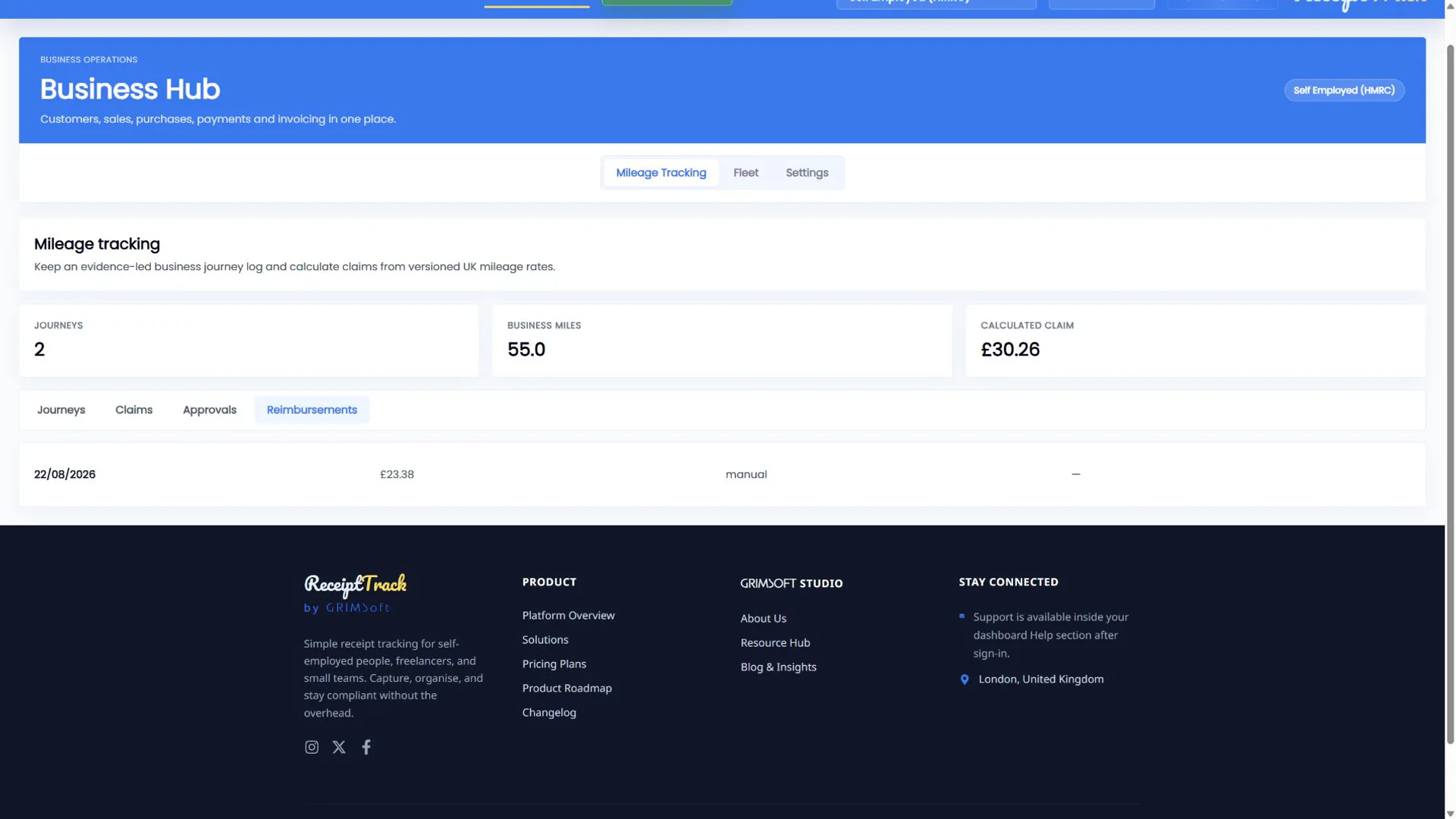
The summary cards show journey, mileage and claim totals. Tabs separate Journeys, Claims, Approvals and Reimbursements so workflow state remains visible.
2. Add and edit a journey
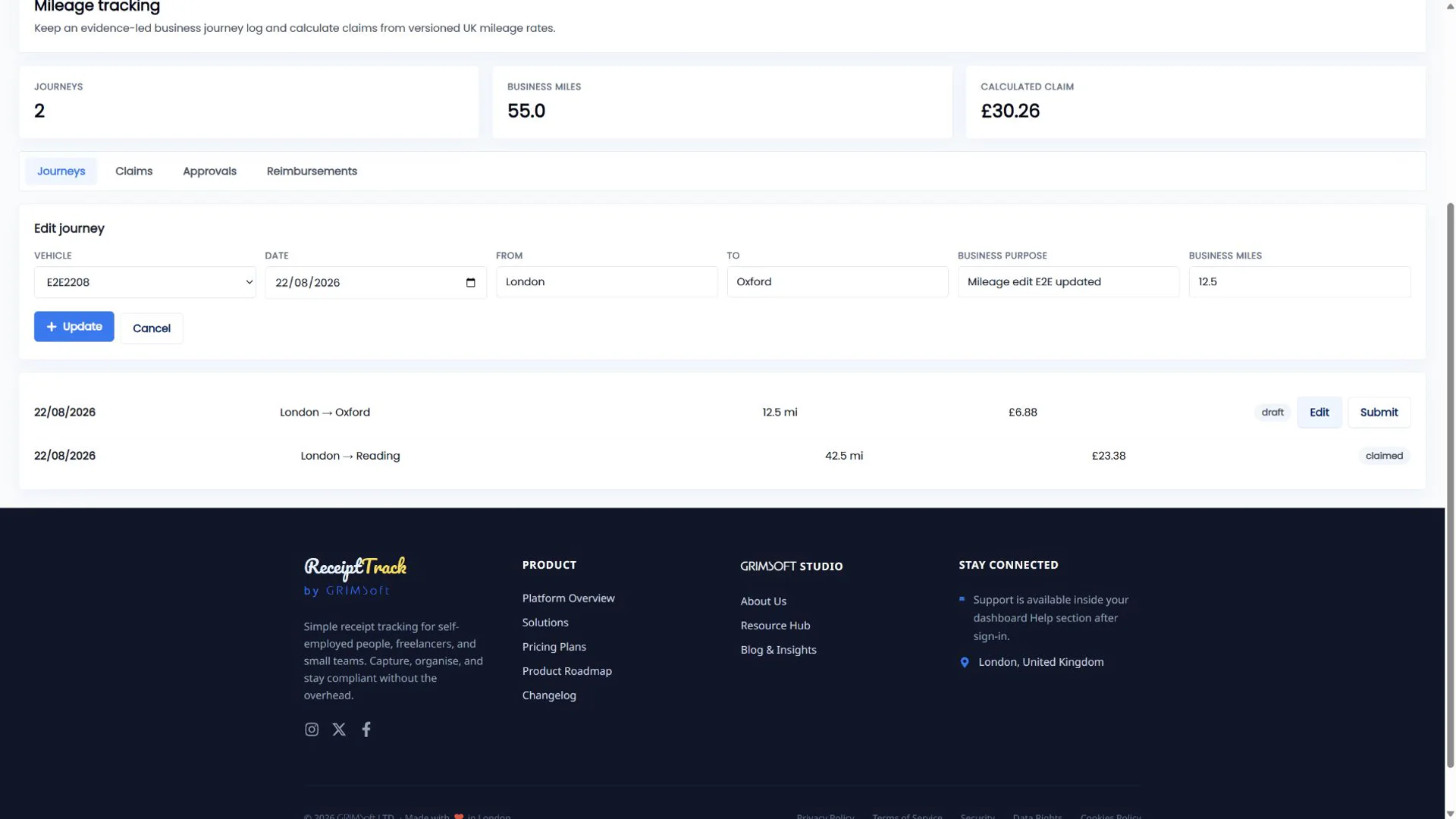
Choose the vehicle and date, enter start/end route, business purpose and business miles, then Add journey. A draft row offers Edit and Submit. Edit opens the populated form; Update saves changes and Cancel leaves it unchanged.
3. Submit the journey
Submit moves a complete draft into review. Draft or rejected journeys may be corrected; approved or claimed journeys are locked. Invalid state changes are refused rather than silently rewriting history.
4. Create and submit a claim
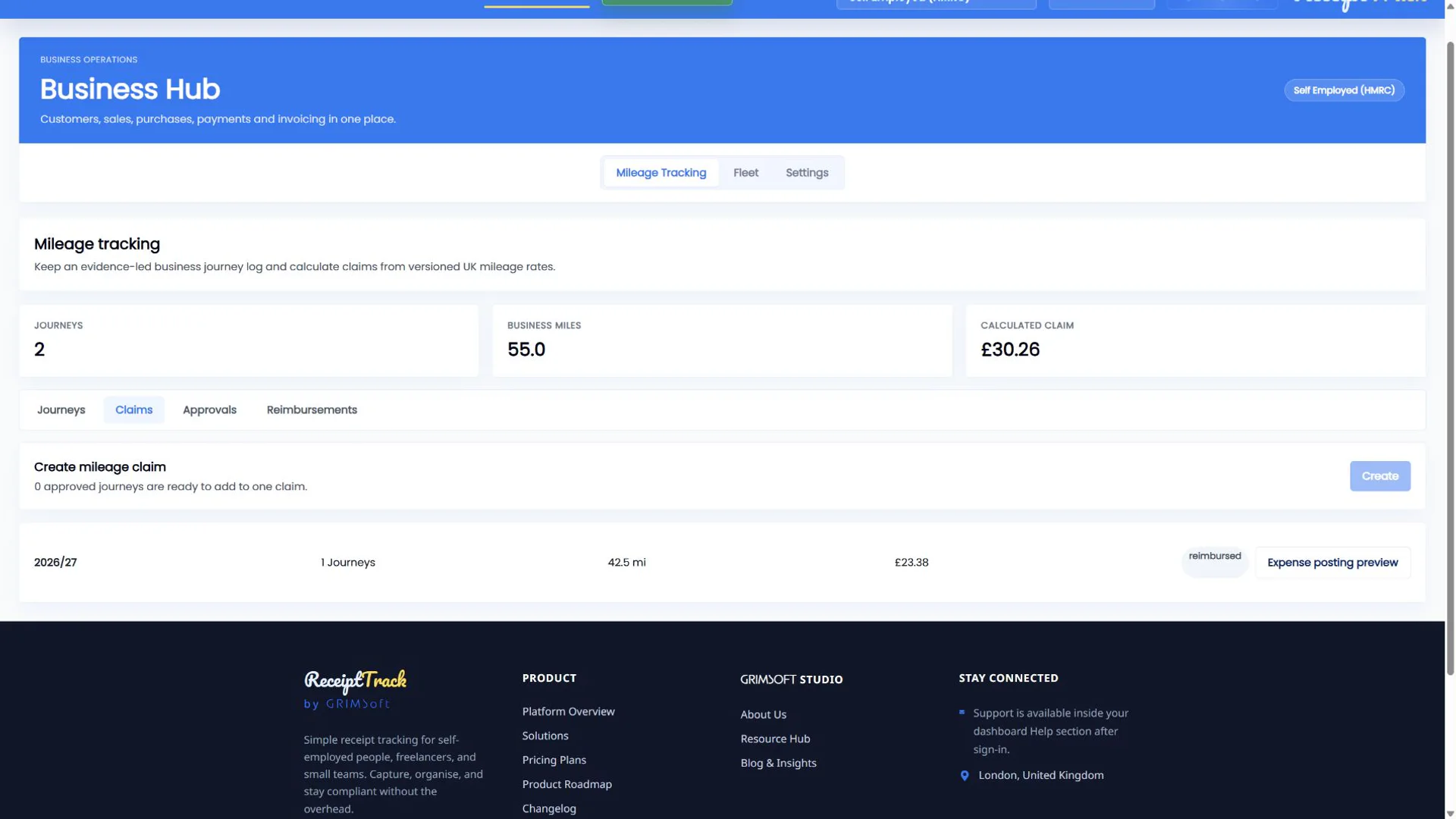
Open Claims. Select eligible approved, unclaimed journeys from one tax year, review miles, applied bands and calculated value, then create and submit the claim.
5. Approve or reject
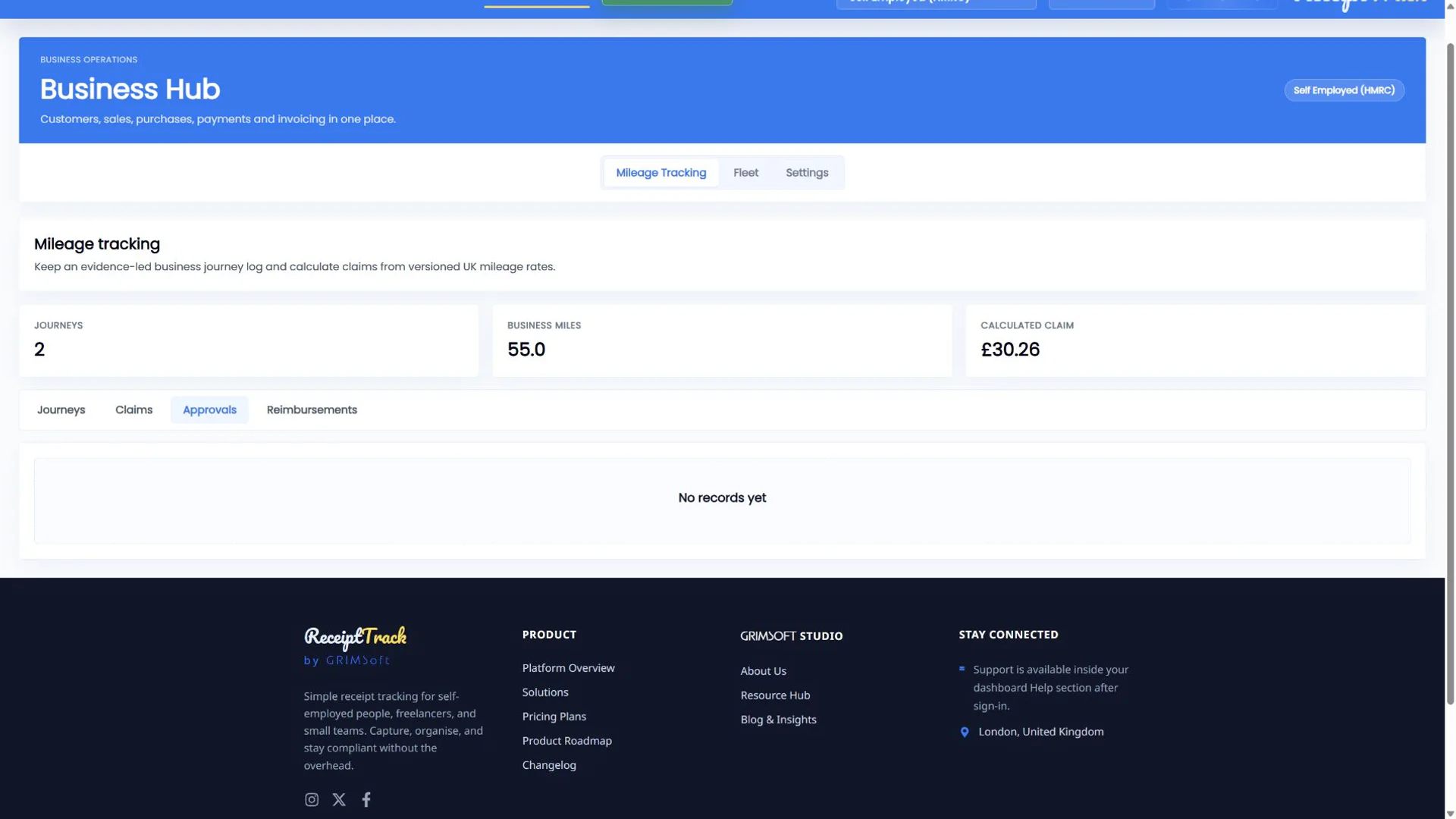
Approvals shows submitted claims. Approve confirms the reviewed claim. Reject should include a useful reason; corrected evidence can then follow the supported resubmission path.
6. Record reimbursement
For an approved claim, enter payment date, method and reference, then record the reimbursement. The Reimbursements tab preserves that evidence and shows the related claim.
7. Keep posting separate
Mileage reimbursement and posting preview do not create Income or Expense data. This mileage release provides a posting preview only; it does not offer an actual Post now action for a mileage claim.
- Each trip has route, purpose and business miles.
- Draft, submitted, approved/rejected and claimed states follow the valid order.
- Claim value matches stored rate/band calculations.
- Reimbursement evidence includes date, method and reference.
- A journey without required evidence cannot be submitted.
- Journeys from different tax years should not be mixed in one claim.
- Claimed journeys cannot be edited.
- A rejected item must be corrected before resubmission.
- Reimbursement is not the same as accounting posting.
Mileage workflow checklist
- Journey evidence complete
- Draft reviewed before Submit
- Eligible journeys selected once
- Claim calculation checked
- Approval decision recorded
- Reimbursement evidence saved
- Posting boundary understood
The complete mileage trail is visible
Manual entry, strict states and recorded reimbursement provide a reviewable trail. Mileage accounting posting remains preview only.
Sources
- ReceiptTrack Business Hub product guide
- ReceiptTrack pricing and Business Hub access
- ReceiptTrack product overview
Related guides
All ReceiptTrack Business Hub guides See the product Start free