ReceiptTrack
Set up your business profile, invoice logo and document settings
Use Settings > Account for the legal identity and invoice logo, then Business Hub > Settings for numbering, terms, VAT, accounting basis and the PDF template. Published settings apply to new document snapshots. Prepare the identity, branding and policies used by new Business Hub documents.
Quick answer
Use Settings > Account for the legal identity and invoice logo, then Business Hub > Settings for numbering, terms, VAT, accounting basis and the PDF template. Published settings apply to new document snapshots.
Before you start
- Have the correct legal name and business address ready.
- Prepare a PNG, JPEG or WebP logo no larger than 512 KB.
- Confirm VAT status and accounting basis with your accountant when uncertain.
- Save the business profile and upload or remove a logo.
- Configure invoice prefix, terms, VAT and accounting basis.
- Choose and publish Classic, Modern or Compact document styling.
1. Open the profile source
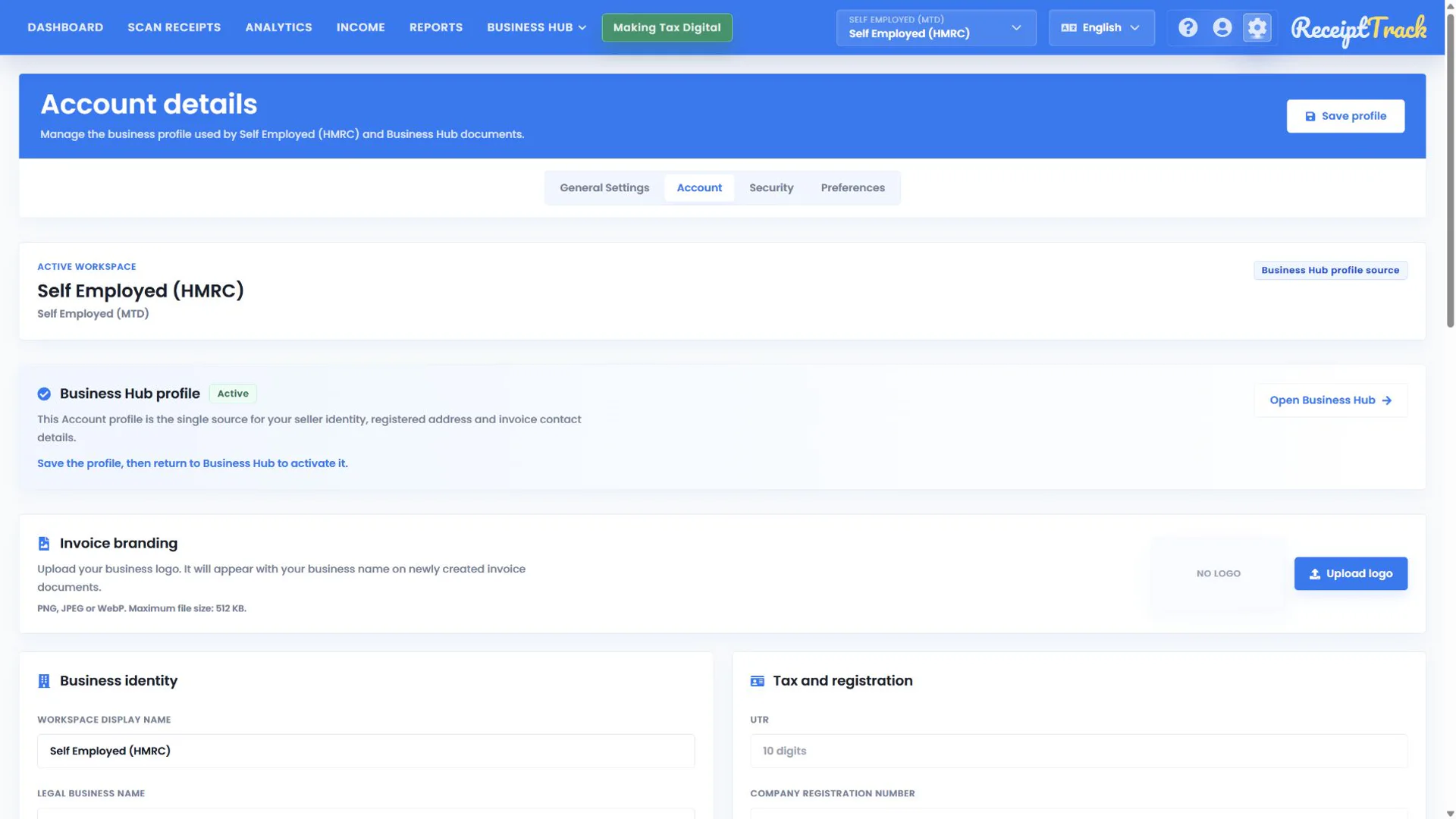
From Business Hub settings, open Account settings. The active workspace profile is the source of seller identity used on newly created documents. Open Business Hub returns to the module.
2. Save identity and branding
Check display/legal name, business type and address, then use Save profile. In Invoice branding, Upload logo selects an image, Replace changes it and Remove logo returns future documents to text-only branding.
- Accepted formats: PNG, JPEG and WebP.
- Maximum file size: 512 KB.
- Use a clean, high-contrast logo with spare space around it.
3. Configure document policy
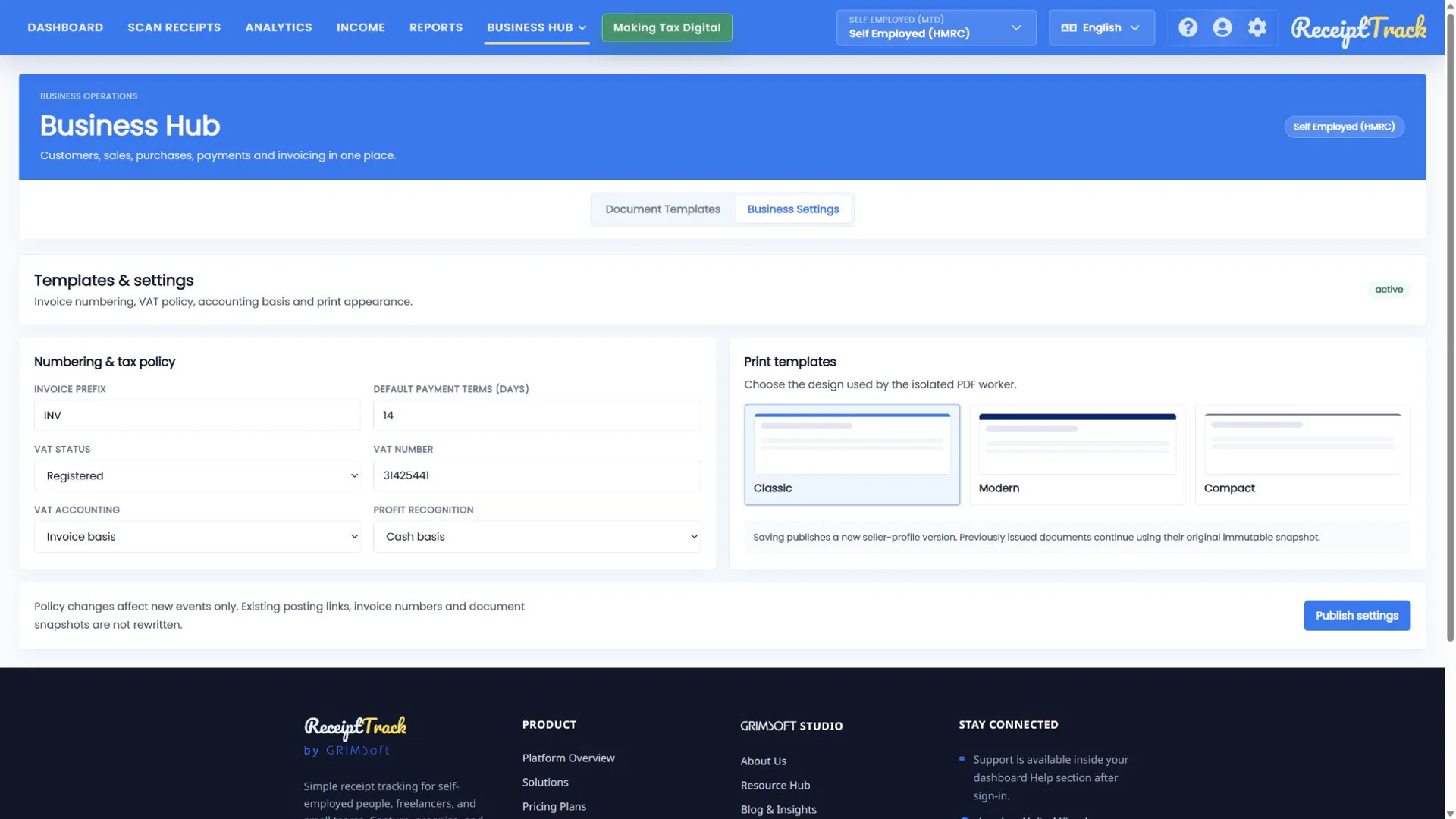
Return to Business Hub > Settings. Set the invoice prefix and default payment terms, then confirm VAT registration, VAT number, VAT accounting and the profit basis used for posting decisions.
4. Select and publish a template
Choose Classic, Modern or Compact and use Publish settings. The selected design controls generated PDFs and print views for new documents.
- Classic is conventional and spacious.
- Modern gives branding more visual weight.
- Compact is useful for line-heavy documents.
5. Respect issued snapshots
Issued invoices keep the seller identity, numbering and tax settings captured when they were finalised. Later profile or template changes affect future documents, not historical evidence.
- Profile identity is accurate.
- Logo preview is clear.
- Invoice prefix and terms match policy.
- VAT and accounting basis are confirmed.
- The chosen template is published.
- Oversized or unsupported logos are rejected.
- A VAT number should not be entered unless VAT registration is enabled.
- Changing settings does not rewrite an already issued invoice.
Business settings checklist
- Identity saved
- Logo uploaded or intentionally omitted
- Numbering and terms set
- Tax and basis checked
- Template published
Your documents now have a reliable source
With profile and document settings published, every new draft starts from consistent business identity and policy while issued records remain stable.
Sources
- ReceiptTrack Business Hub product guide
- ReceiptTrack pricing and Business Hub access
- ReceiptTrack product overview
Related guides
All ReceiptTrack Business Hub guides See the product Start free