ReceiptTrack
Business Hub quickstart: access, Overview and navigation
Open Business Hub from an eligible Self Employed, HMRC or Company workspace. Everyone can explore it, while creating or changing records requires Pro or Advanced. Overview then links directly to sales, purchases, contacts and payments. Start safely, understand plan access and use the Overview cards and navigation to reach each Business Hub workflow.
Quick answer
Open Business Hub from an eligible Self Employed, HMRC or Company workspace. Everyone can explore it, while creating or changing records requires Pro or Advanced. Overview then links directly to sales, purchases, contacts and payments.
Before you start
- Sign in and select the workspace you want to use.
- For write access, confirm the owner is on Pro or Advanced.
- Free and Starter users can explore existing content but cannot create or change Business Hub records.
- Open Business Hub and understand the access prompt.
- Read Overview totals and use its four quick actions.
- Move between Sales, Purchases, Contacts, Payments, Catalogue, Mileage and Settings.
1. Choose the correct workspace
Use the workspace selector before opening Business Hub. Business data belongs to the selected workspace, so changing it changes the customers, documents and totals you see.
- Supported workspace types include Self Employed, HMRC and Company.
- A first-time Free or Starter user may dismiss the gentle upgrade prompt and continue exploring.
- View plans or Compare plans explains how Pro and Advanced unlock creating and editing.
2. Read Overview
Overview is the control room. Receivable shows money still owed to you, Paid tracks receipts, Payable shows supplier balances and the activity area highlights what changed.
- New invoice opens a sales draft.
- Scan bill starts supplier evidence upload.
- Add contact opens the customer form.
- Record payment captures money received or paid.
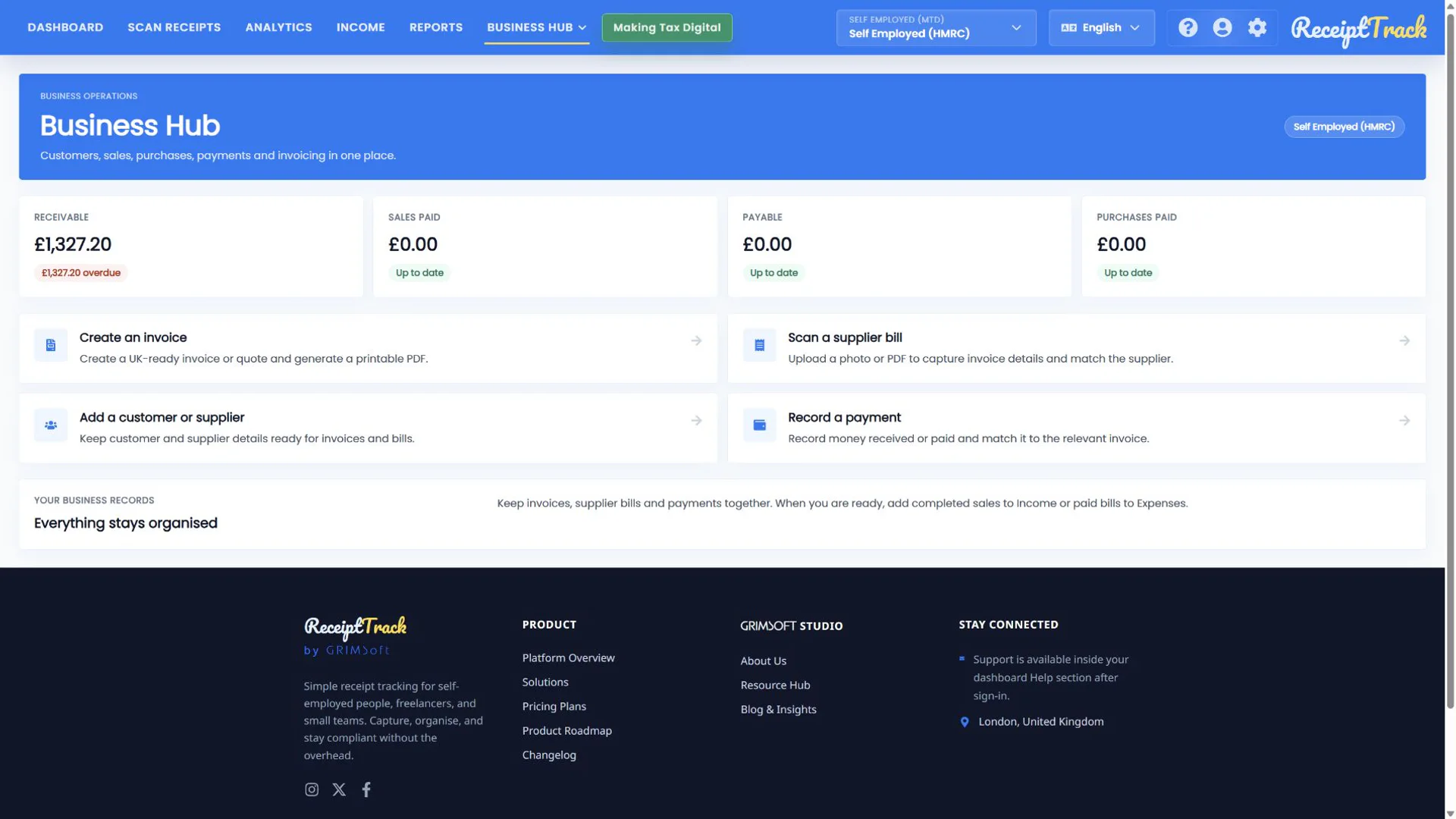
3. Use the Business Hub navigation
The main Business Hub menu switches modules; the secondary navigation and breadcrumbs keep the current module visible. Back links return to the relevant list rather than leaving the Hub.
- Sales: quotes, invoices and credit notes.
- Purchases: scanned or manual supplier bills.
- Contacts and Catalogue: reusable business records.
- Payments: allocation and posting.
- Mileage: journeys, claims, approvals, reimbursements, fleet and rates.
- Templates and Settings: document appearance and business policy.
4. Understand read-only access
If an owner downgrades from Pro or Advanced, ReceiptTrack preserves the records. The user may view and download existing documents, but create, edit, approve, allocate and post actions stay blocked until access is restored.
- The intended workspace name is visible.
- Overview totals belong to that workspace.
- Each menu item opens its expected list.
- Plan restrictions never delete existing records.
- Wrong figures usually mean the wrong workspace is selected.
- A disabled create action normally means the plan is Free or Starter.
- Estimating and Staff are development-only and intentionally absent from this launch guide.
Quickstart checklist
- Correct workspace selected
- Plan access understood
- Overview totals reviewed
- Each launch-visible module located
You are ready to use Business Hub
Start from Overview when you need the financial picture, then enter the focused module for the task. Read-only access protects historical data when a subscription changes.
Sources
- ReceiptTrack Business Hub product guide
- ReceiptTrack pricing and Business Hub access
- ReceiptTrack product overview
Related guides
- Set up your business profile, invoice logo and document settings
- Create quotes, invoices and credit notes
All ReceiptTrack Business Hub guides See the product Start free