ReceiptTrack
Create quotes, invoices and credit notes
Open Sales and choose New document. Select Invoice or Quote, customer, dates and lines, then Save draft or Finalize & number. Once issued, use Open PDF or Print; use Create full credit note for a correction instead of editing the snapshot. Follow the complete sales-document workflow from draft to immutable issued evidence.
Quick answer
Open Sales and choose New document. Select Invoice or Quote, customer, dates and lines, then Save draft or Finalize & number. Once issued, use Open PDF or Print; use Create full credit note for a correction instead of editing the snapshot.
Before you start
- Create the customer first.
- Check profile, logo, numbering, VAT and template settings.
- Prepare line descriptions, quantities, prices and tax treatments.
- Navigate the Sales list.
- Build and save a quote or invoice draft.
- Finalise, download or print it, and create a credit note.
1. Use the Sales list
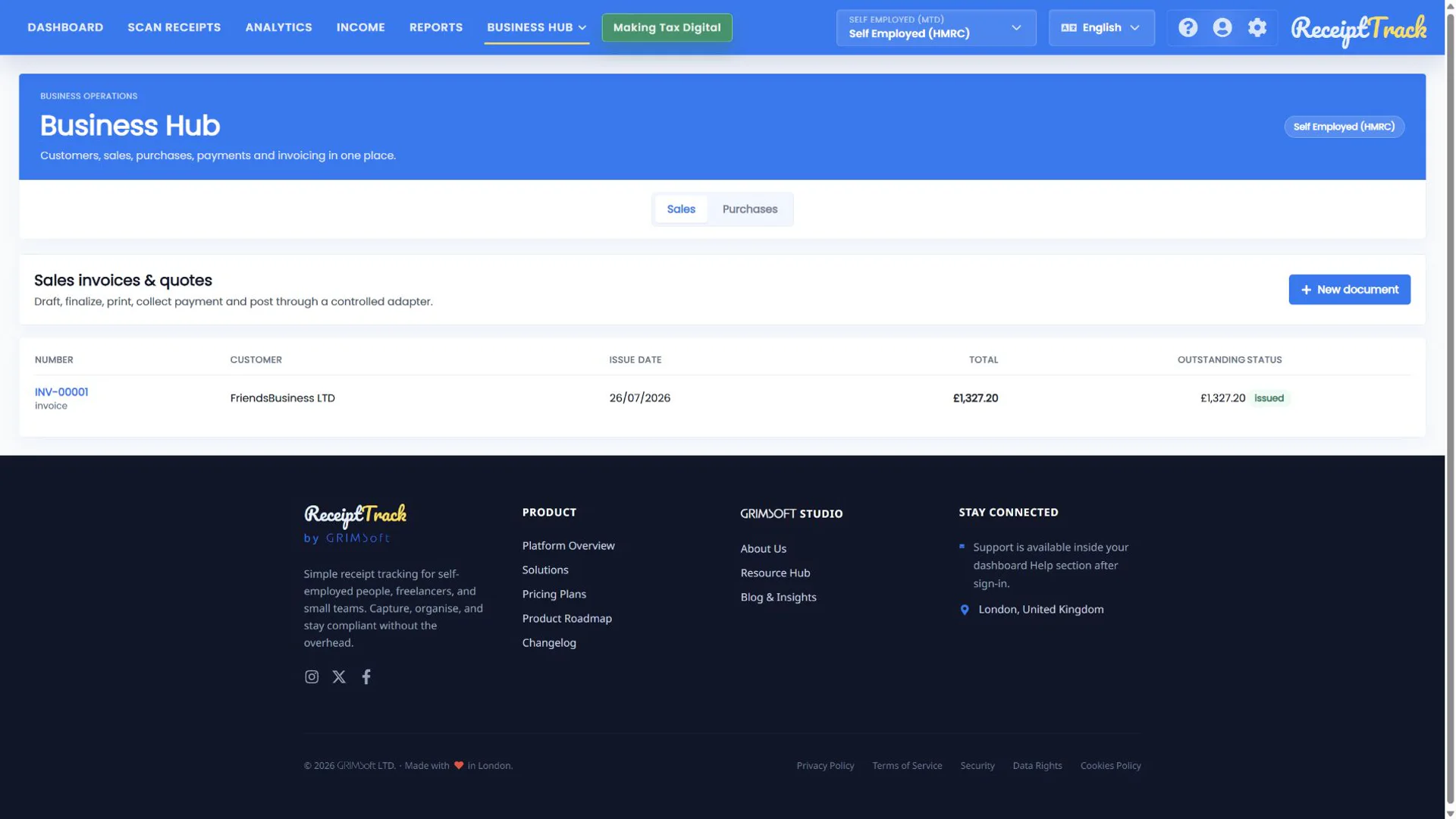
The table shows number, customer, issue and due dates, total, outstanding amount and status. Choose New document to start, or select a document number to open it.
2. Complete the draft header
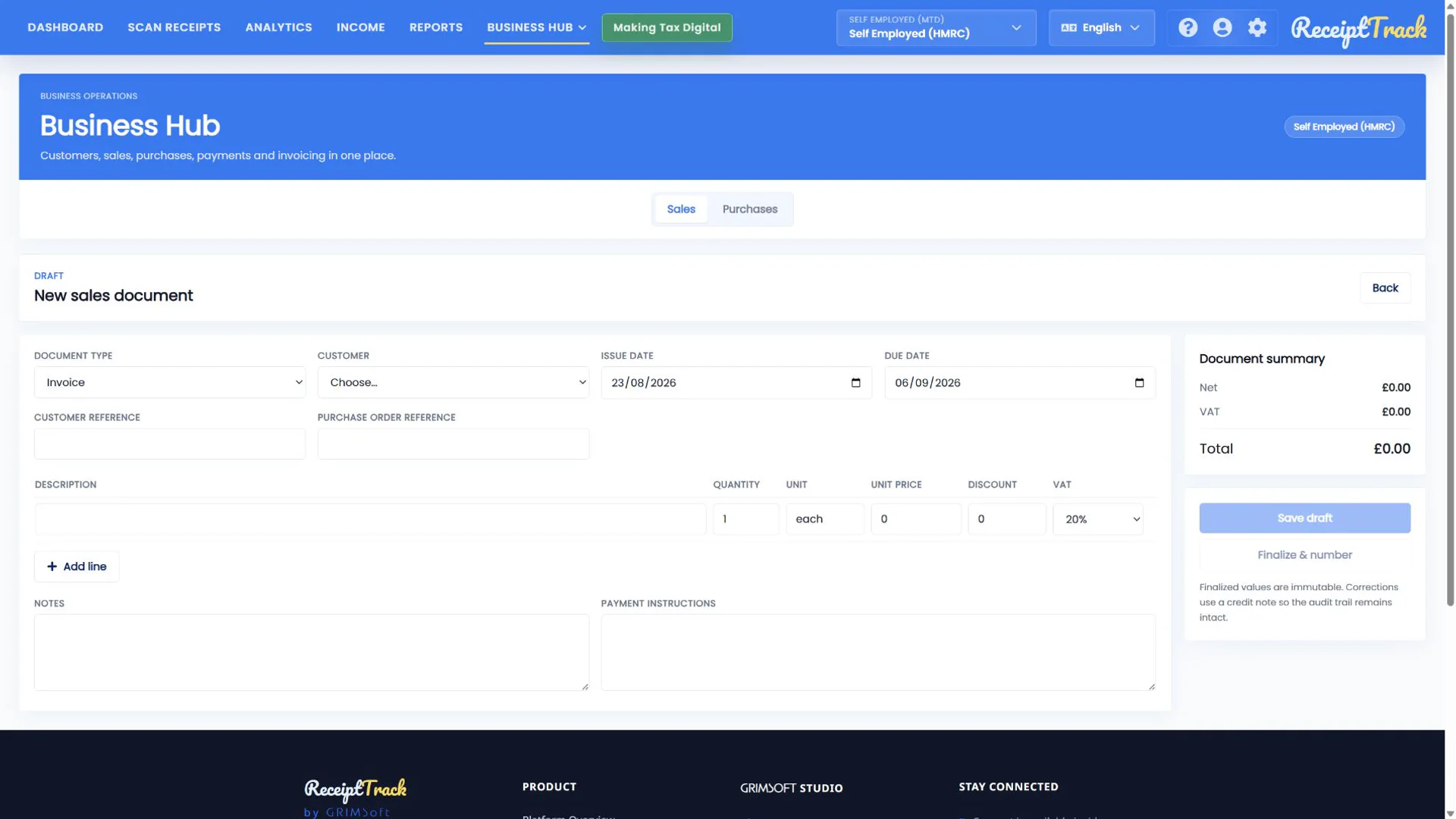
Choose Invoice or Quote, select the customer and enter issue/due or expiry dates. Customer reference and PO reference help both sides reconcile the document. Back returns to the list.
3. Add and review lines
For each line enter description, quantity, unit price, discount and VAT treatment. Add line creates another row; the remove control deletes an unwanted draft row. Add notes and payment instructions, then review subtotal, VAT and total.
4. Save or issue
Save draft keeps an editable working document. Finalize & number validates it, assigns the next number and creates the immutable issued snapshot. A quote remains a commercial offer until converted through the supported workflow.
5. Use issued actions
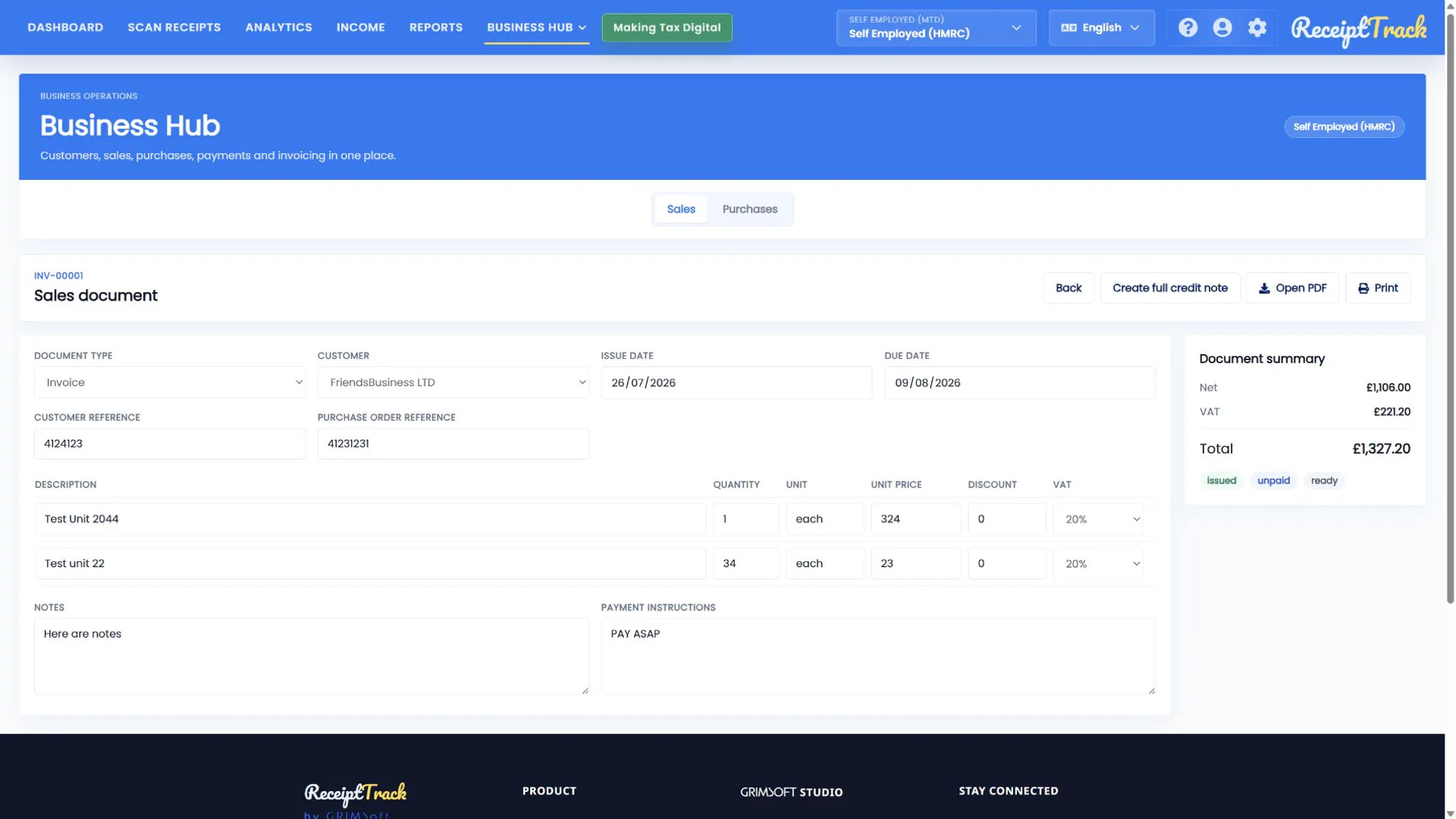
Open PDF displays the generated artifact and Print opens the print workflow. Create full credit note starts the linked reversal when the whole issued invoice needs correcting.
- Customer and references are correct.
- Lines and totals reconcile.
- The issued document has a stable number.
- PDF and print output show the intended logo/template.
- Corrections are linked through credit notes.
- Finalisation can fail when required customer, date or line data is missing.
- Issued fields are disabled by design.
- Never replace a credit note by editing historical evidence.
- Payment status changes through allocations, not by changing the invoice.
Sales document checklist
- Customer and dates checked
- References added if needed
- Lines, discounts and VAT verified
- Notes/payment instructions reviewed
- PDF checked after finalisation
The sales trail is complete
Drafts allow preparation; finalisation creates numbered evidence; PDFs, printing and linked credit notes preserve a clean audit trail.
Sources
- ReceiptTrack Business Hub product guide
- ReceiptTrack pricing and Business Hub access
- ReceiptTrack product overview
Related guides
All ReceiptTrack Business Hub guides See the product Start free