ReceiptTrack
Scan, review and approve supplier bills
Open Purchases and use Scan invoice for evidence or Manual bill for direct entry. A scan moves through queued/processing to needs review. Check supplier, invoice details, category, lines and VAT, Save review, then Approve bill. Approval does not pay or post it. Turn supplier evidence into a checked, approved purchase record without trusting extraction blindly.
Quick answer
Open Purchases and use Scan invoice for evidence or Manual bill for direct entry. A scan moves through queued/processing to needs review. Check supplier, invoice details, category, lines and VAT, Save review, then Approve bill. Approval does not pay or post it.
Before you start
- Have a supported PDF or image, or the bill details for manual entry.
- Create the supplier first when practical.
- Treat extracted fields as suggestions that need human review.
- Upload and monitor scan status.
- Create or review bill fields and lines.
- Approve the bill and understand its remaining states.
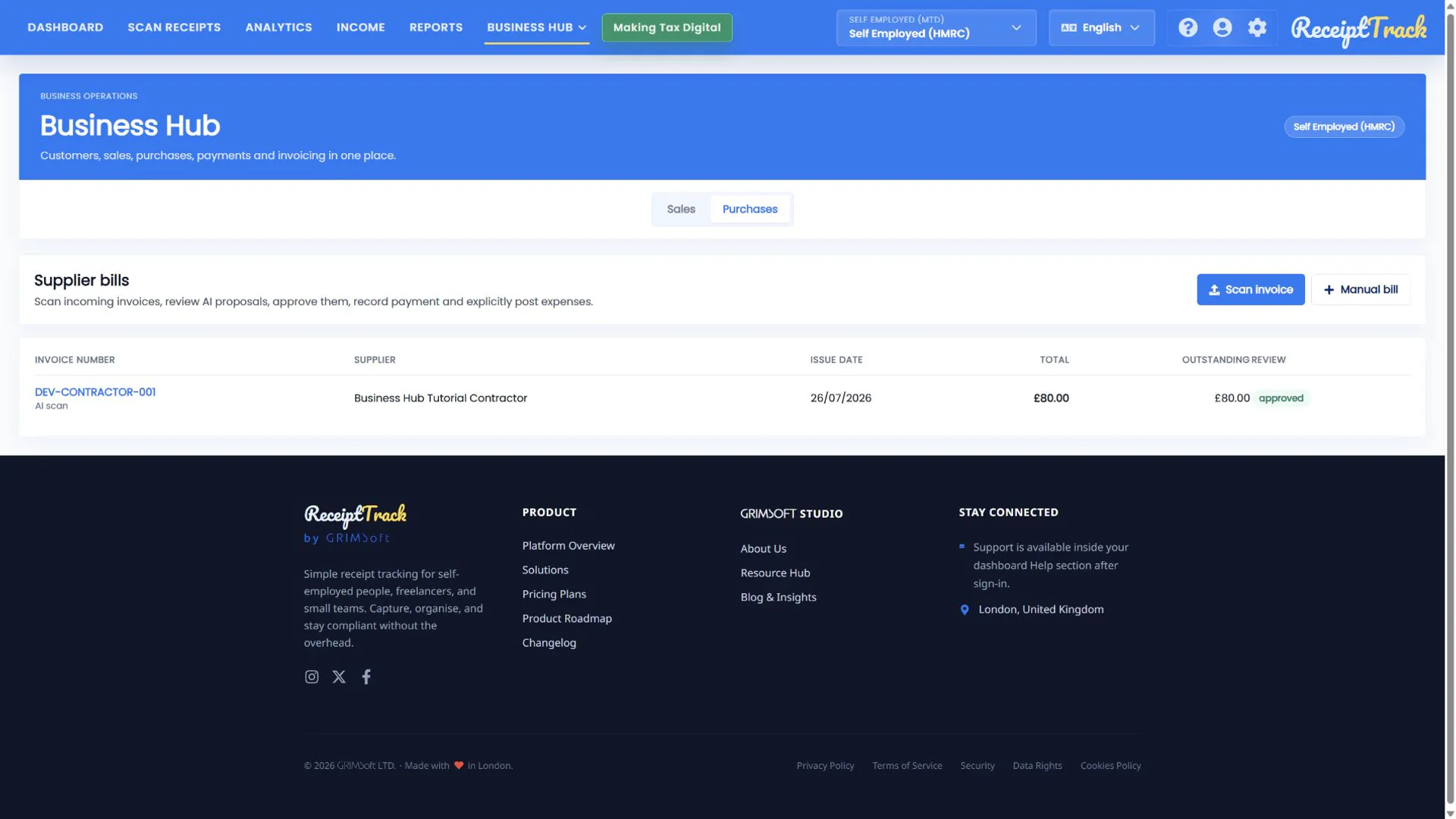
1. Start from Purchases
The list shows supplier, invoice reference, dates, total, outstanding amount and review status. Scan invoice opens the file chooser; Manual bill opens an empty editor.
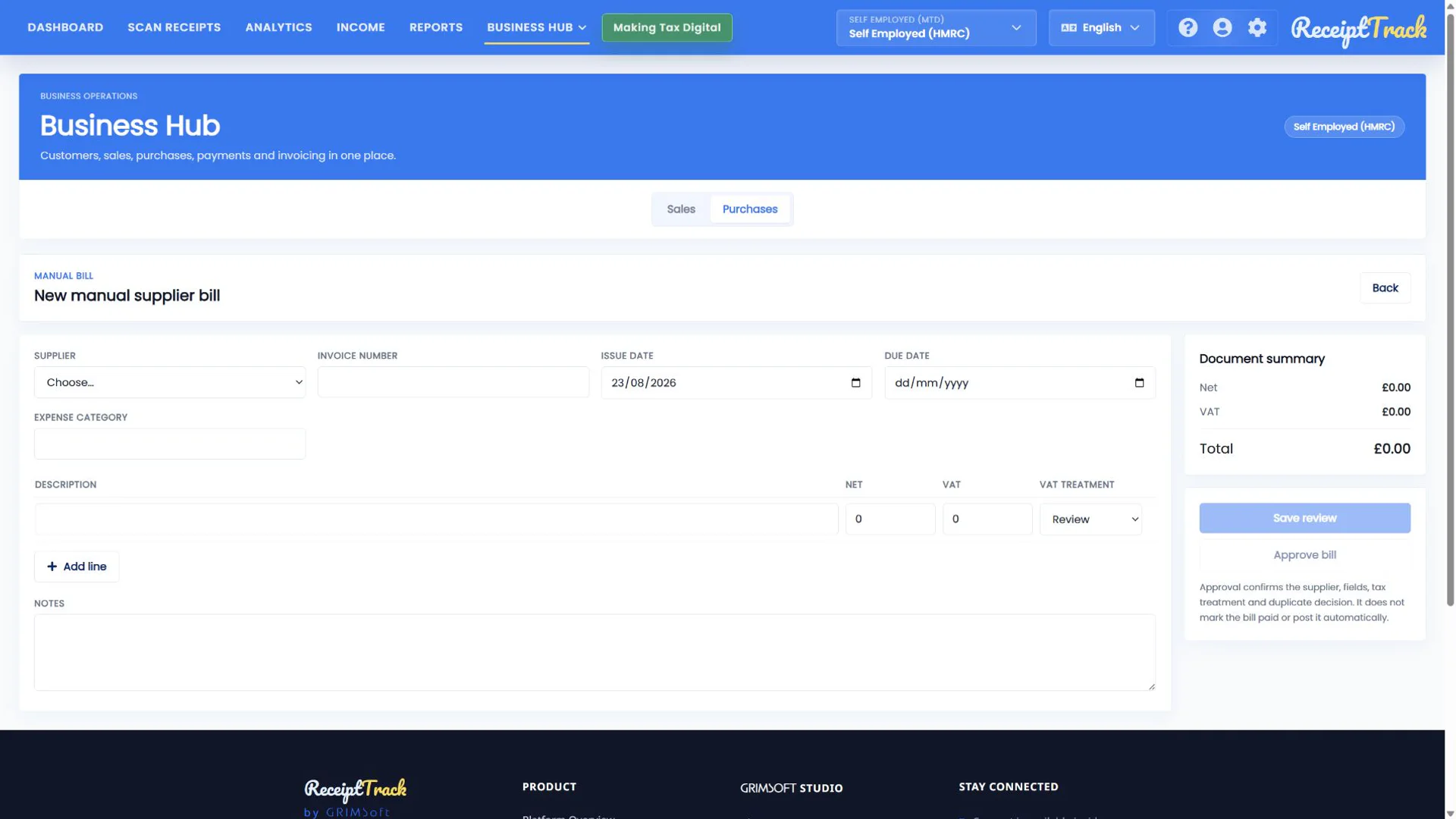
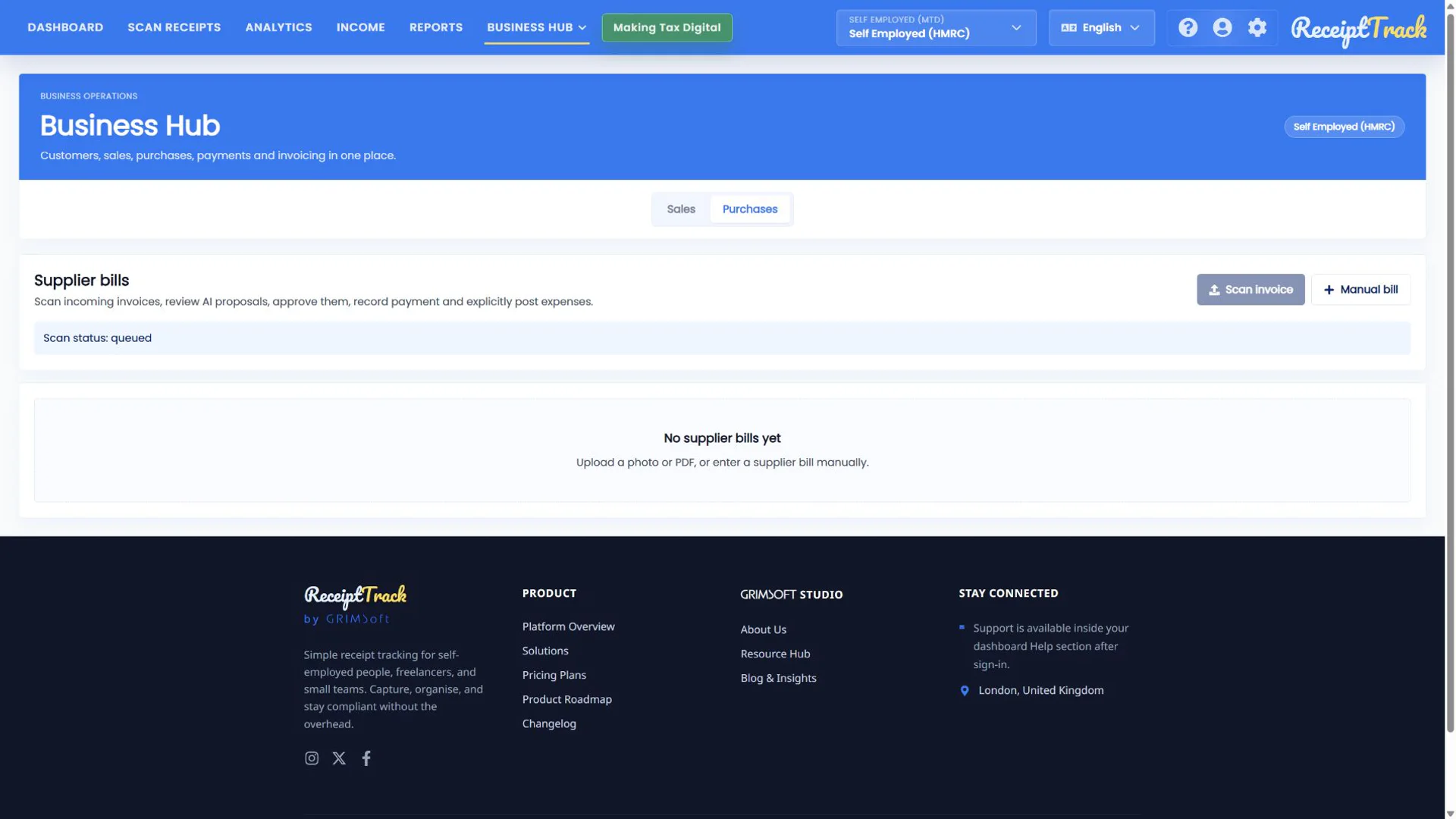
2. Upload evidence
Choose a supported PDF or image. Queued means extraction has not finished; processing means the worker is reading it. Keep the source available and wait for needs review or an actionable failure.
3. Review every extracted field
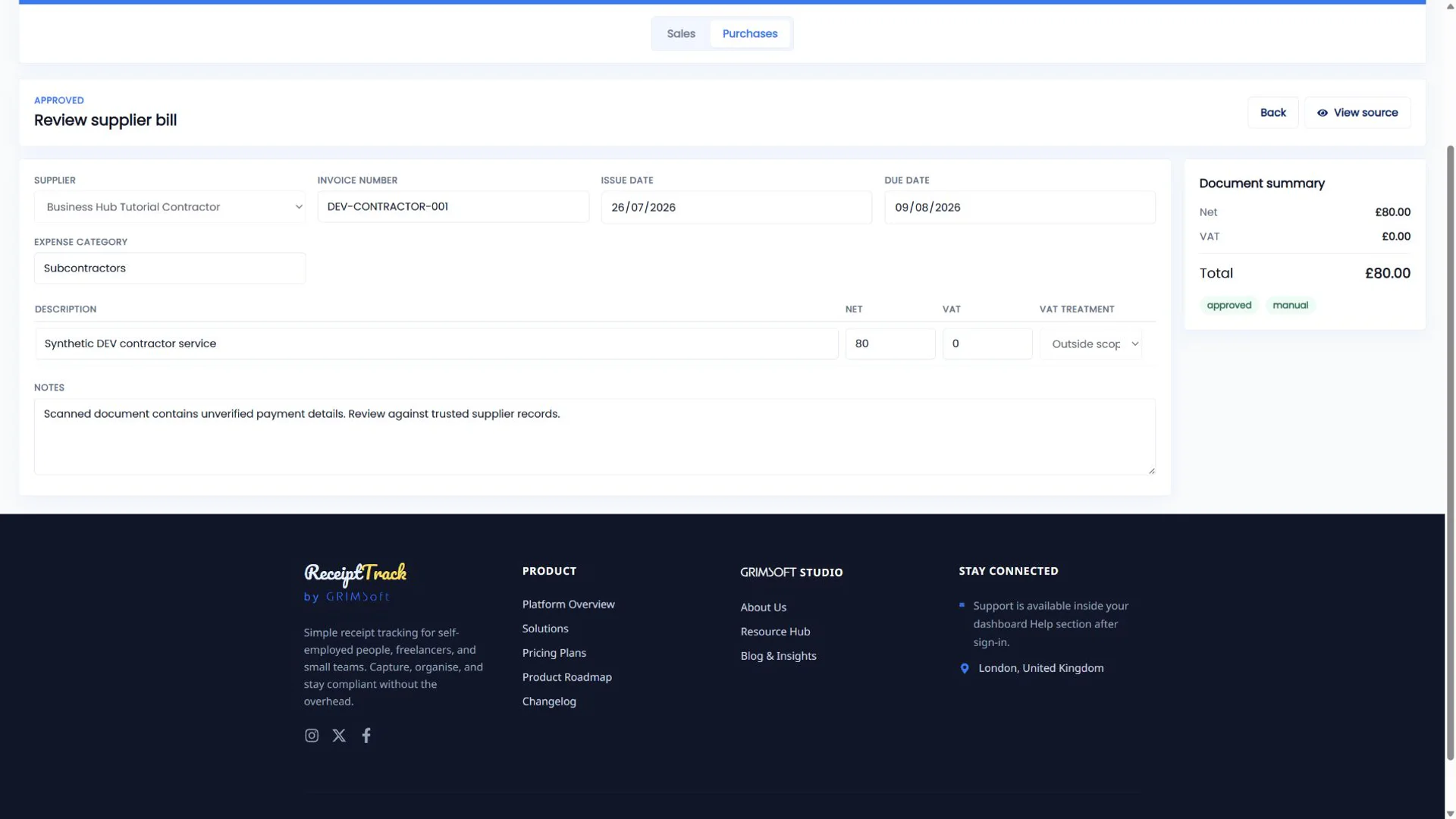
Use View source to compare the evidence. Confirm supplier, invoice number, invoice/due dates and expense category. Check each description, net value, VAT and treatment; use Add line or remove controls when necessary.
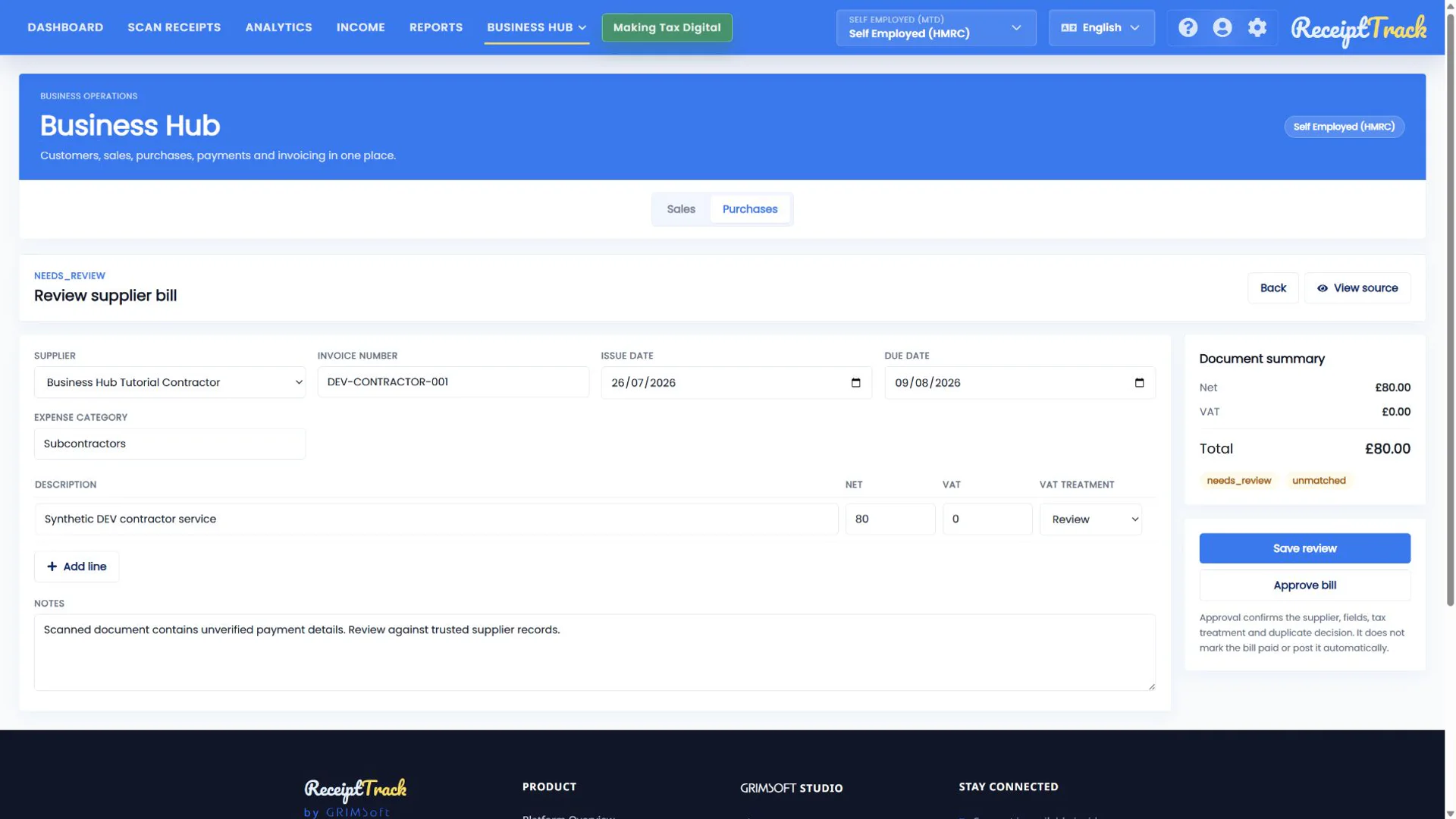
4. Save review and approve
Save review preserves the checked work without approving. Approve bill confirms the reviewed snapshot and locks evidence-sensitive fields. Back returns to Purchases.
- Duplicate warnings should be resolved before approval.
- Outside scope, exempt, zero and VAT-rated supplies are distinct.
- Notes should explain unusual evidence or decisions.
5. Understand approved status
Approved means checked—not paid and not posted. Record/allocate a payment separately, then use Ready to post when the accounting event is ready.
- Source evidence opens.
- Supplier/reference/dates match it.
- Net, VAT and total reconcile.
- The bill is approved but retains explicit unpaid/unposted status until later actions.
- Do not approve while a scan is queued.
- If the supplier is missing, create or select the correct record before approval.
- An AI extraction is not evidence of correctness.
- A file failure should be retried with a supported, readable source.
Supplier bill checklist
- Source inspected
- Supplier and reference matched
- Dates/category checked
- Lines and VAT reconciled
- Duplicate risk cleared
- Approval status understood
The bill is checked, not silently completed
ReceiptTrack separates extraction, human review, approval, payment and accounting posting so each decision remains visible.
Sources
- ReceiptTrack Business Hub product guide
- ReceiptTrack pricing and Business Hub access
- ReceiptTrack product overview
Related guides
All ReceiptTrack Business Hub guides See the product Start free